

Instructions
If you just purchased [Your Template Name] Webflow Template and are looking for the basics on how to get started editing it, start here.
Getting Started
Thanks for purchasing the [Your Template Name] Webflow template. In this guide, we cover everything you need to know to customize and make the most out of this template, including colors, fonts, CMS content, and more.
Client-First Naming System
We use the Client-First naming system, developed by Finsweet, to make it easy for you to understand, navigate, and scale the template. Client-First ensures consistency and clarity in class names, making the template easy to edit for users of all skill levels.
- To learn more about Client-First, visit the Client-First Documentation.

Styling
Colors
The [Your Template Name] template uses color variables, making it easy to update colors across the entire site.
To edit colors:
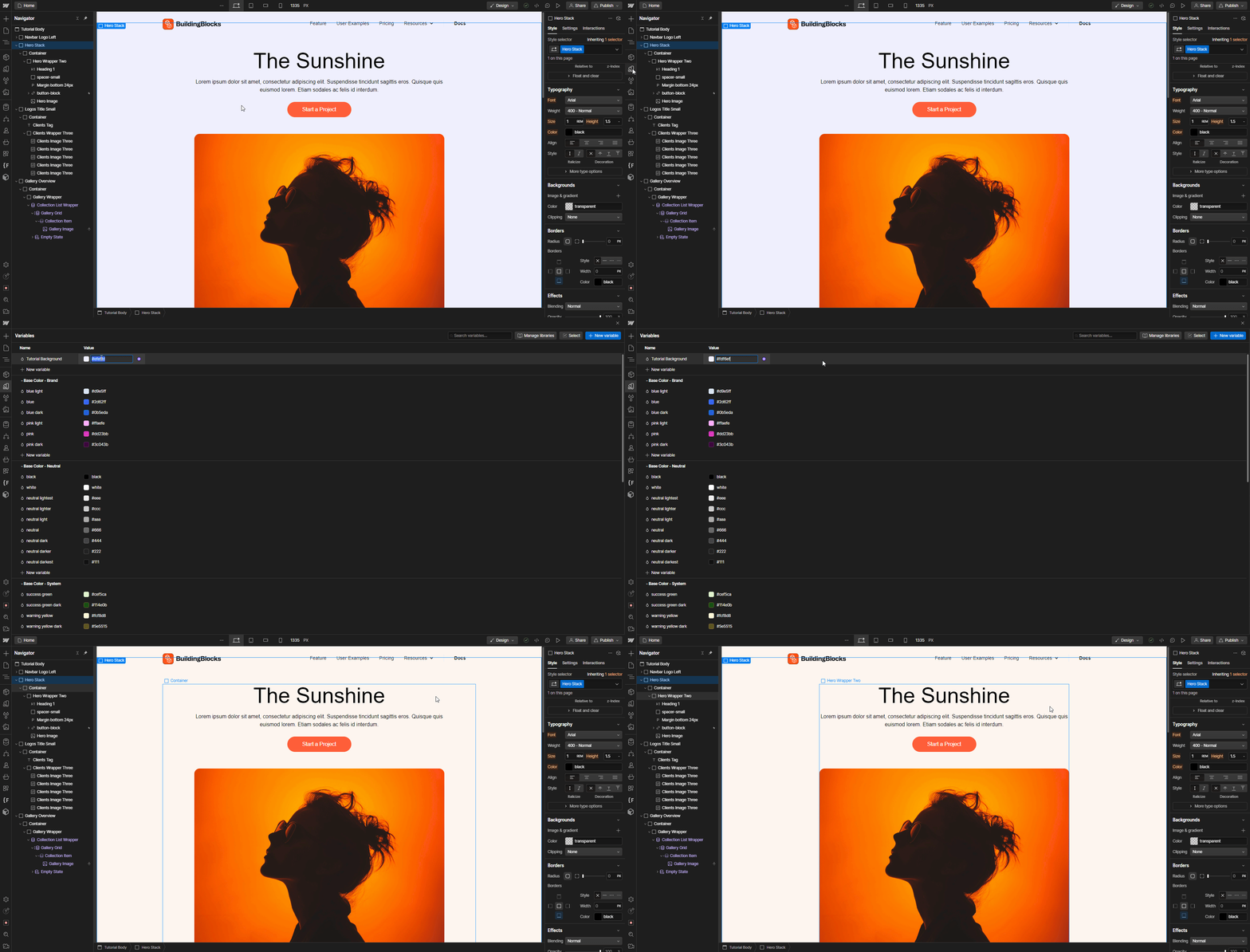
- Go to the Variables tab in the left sidebar.
- Scroll down to Colors, and double-click on the color swatch to update it site-wide.
Fonts
Our template uses one global font, which can be changed throughout the site with one click.
To change the font:
- Select the Body Element:
- In the Designer, click on any section or element that is a part of the body.
- Then, open the Navigator panel (left side) and select the Body (All Pages) element at the top.
- Open the Typography Settings:
- With the body selected, go to the Style Panel (paintbrush icon on the right).
- Scroll to the Typography section.
- Change the Font:
- Click on the current font family to open the font options.
- Choose a new font from Webflow’s library, or click Add Google Font to find and add a new one.
- Adjust other settings like font size, line height, letter spacing, etc.
- Apply to All Text:
- This change will apply to all text elements (paragraphs, headings, lists, etc.) that inherit styles from the body tag, across the entire site.

- If you need custom fonts, go to Project Settings > Fonts to upload your own or connect an Adobe Fonts account.
Graphics, Icons & SVGs
Some icons or graphics may be in formats like PNG, JPG, or SVG, which won't be affected by Webflow's global styles.
Editing SVGs in Webflow
For inline SVGs:
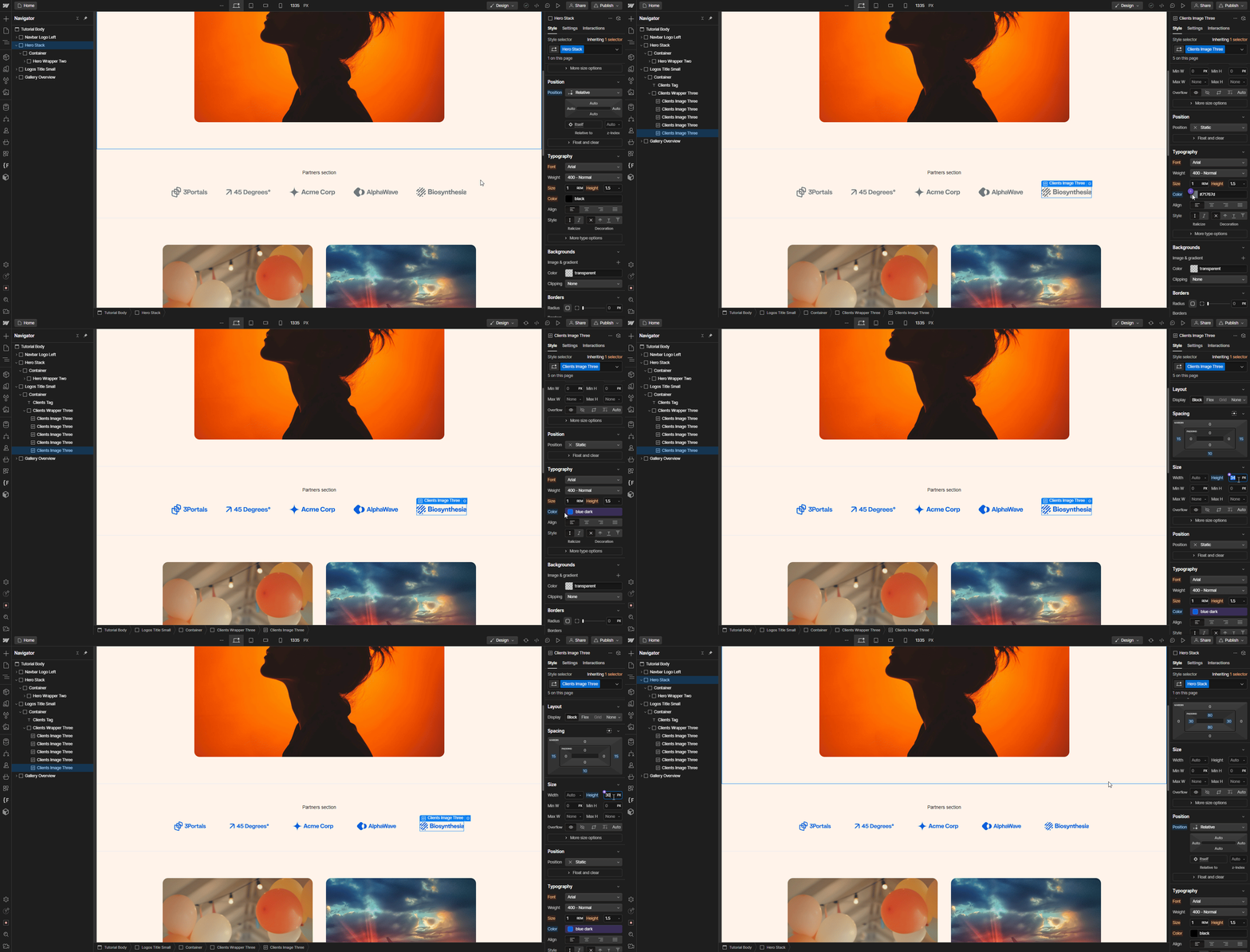
- You can change the color and size using Webflow’s style panel.
For Changing SVGs:
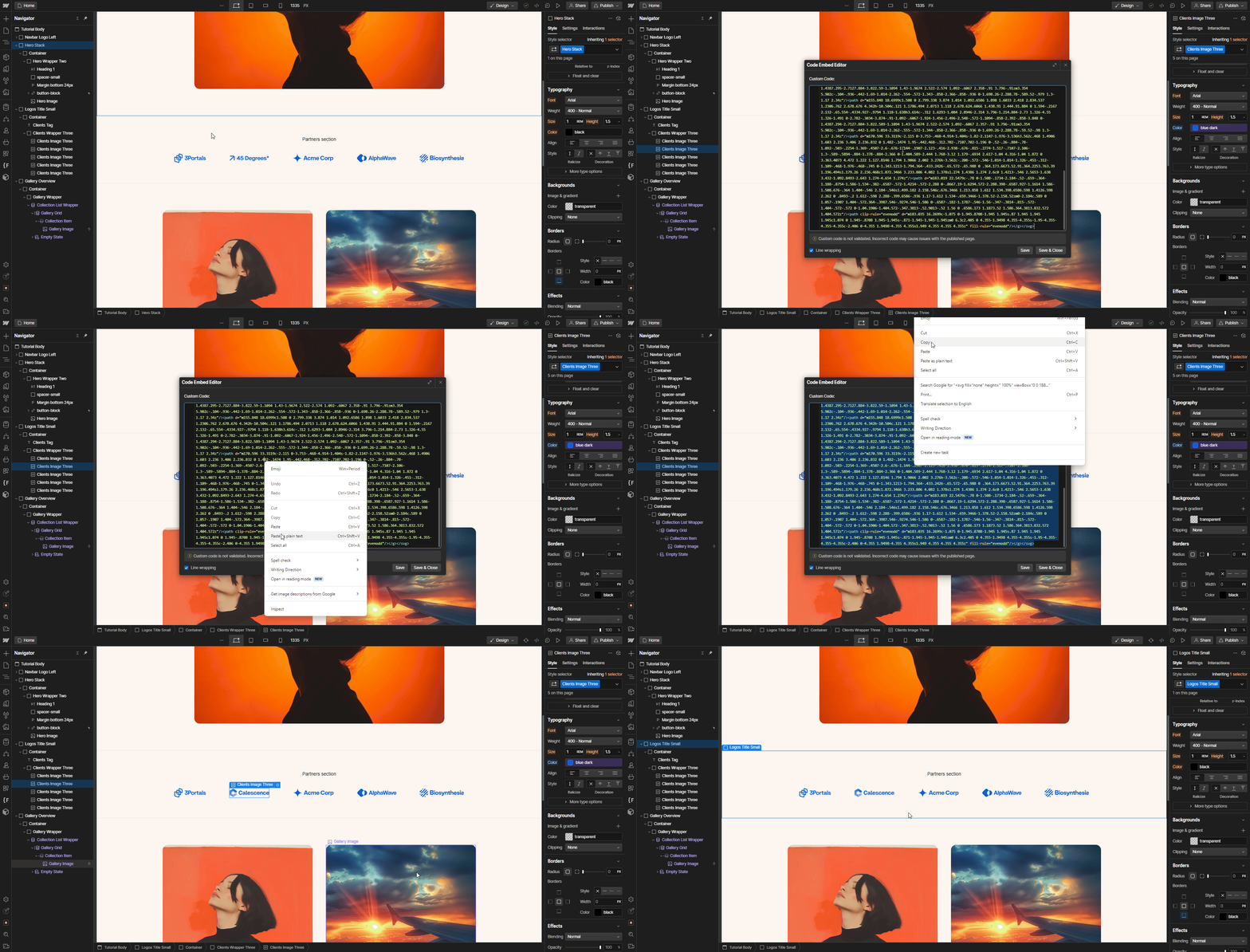
- Select the Embed Element: In the Designer, click on the Embed element where the current SVG is placed.
- Open the Embed Editor:
- In the settings panel (cog icon), click the “Open Code Editor” button to access the SVG code.
- Replace the SVG Code:
- Delete the current SVG code.
- Paste the new SVG code (copied from your SVG file or design tool) into the Embed editor.
- Save and Close: After pasting the new code, click "Save & Close."
For Changing Images:
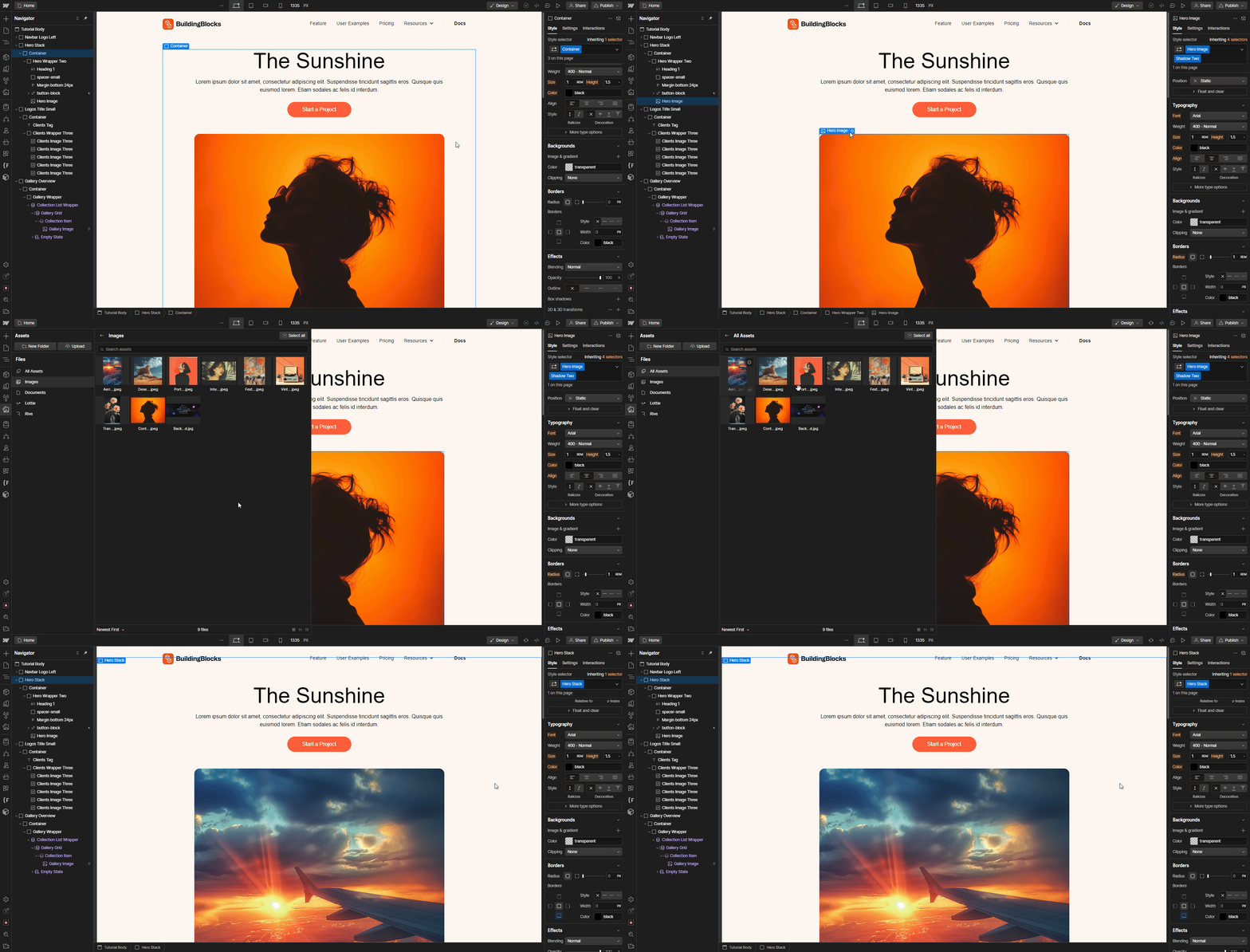
- Select the Element: In the Designer, click on the image you want to change or find it in the Navigator panel.
- Replace Image: In the right-hand panel, under the "Element Settings" tab (cog icon), click the image thumbnail or "Replace Image" button.
- Upload New Image: Either choose a new image from the Asset Manager or upload a new one from your computer.
Editing Pages
Static Pages
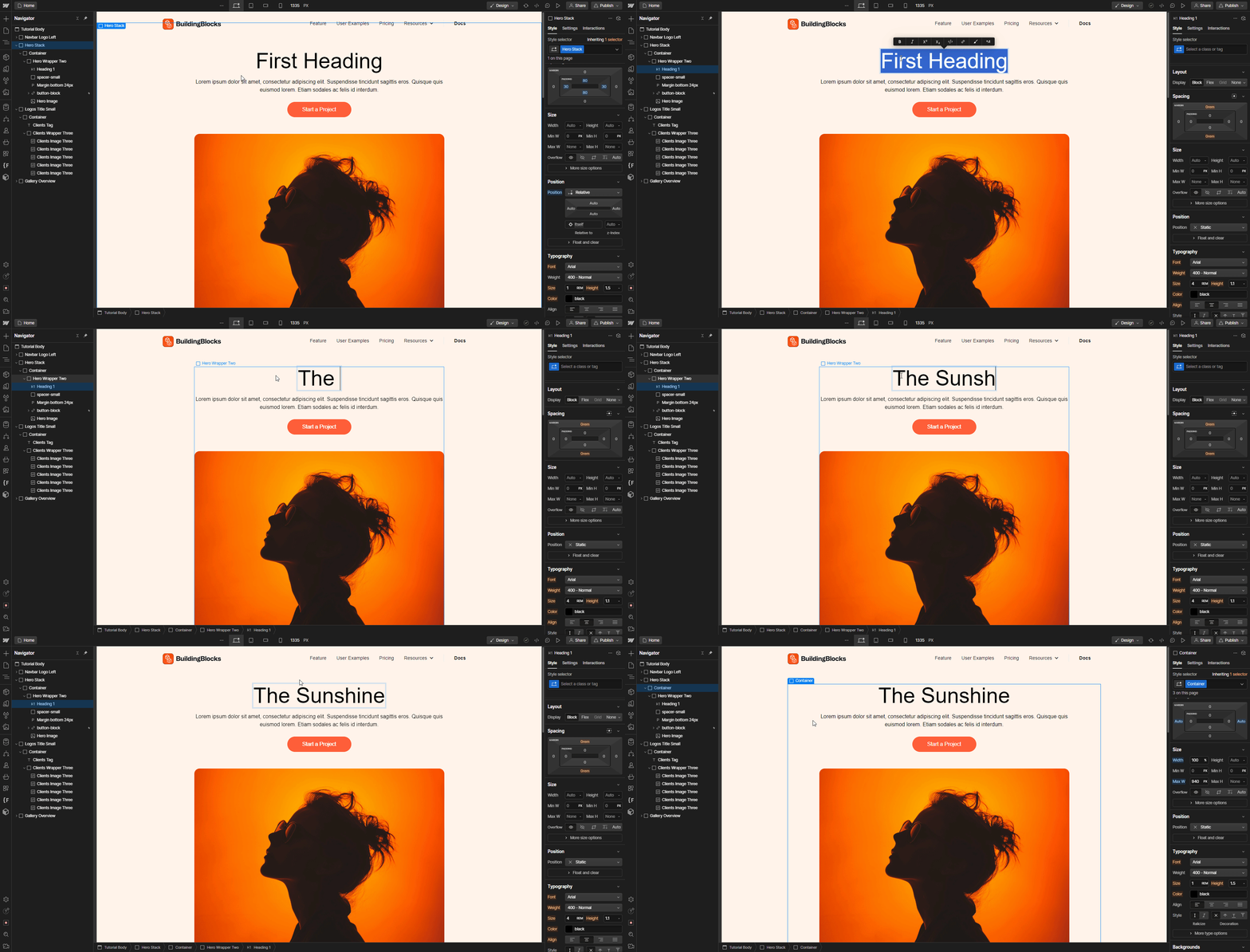
Static content refers to elements that do not pull from the CMS. You can edit these elements by directly typing into them on the canvas.
Dynamic Content (CMS)
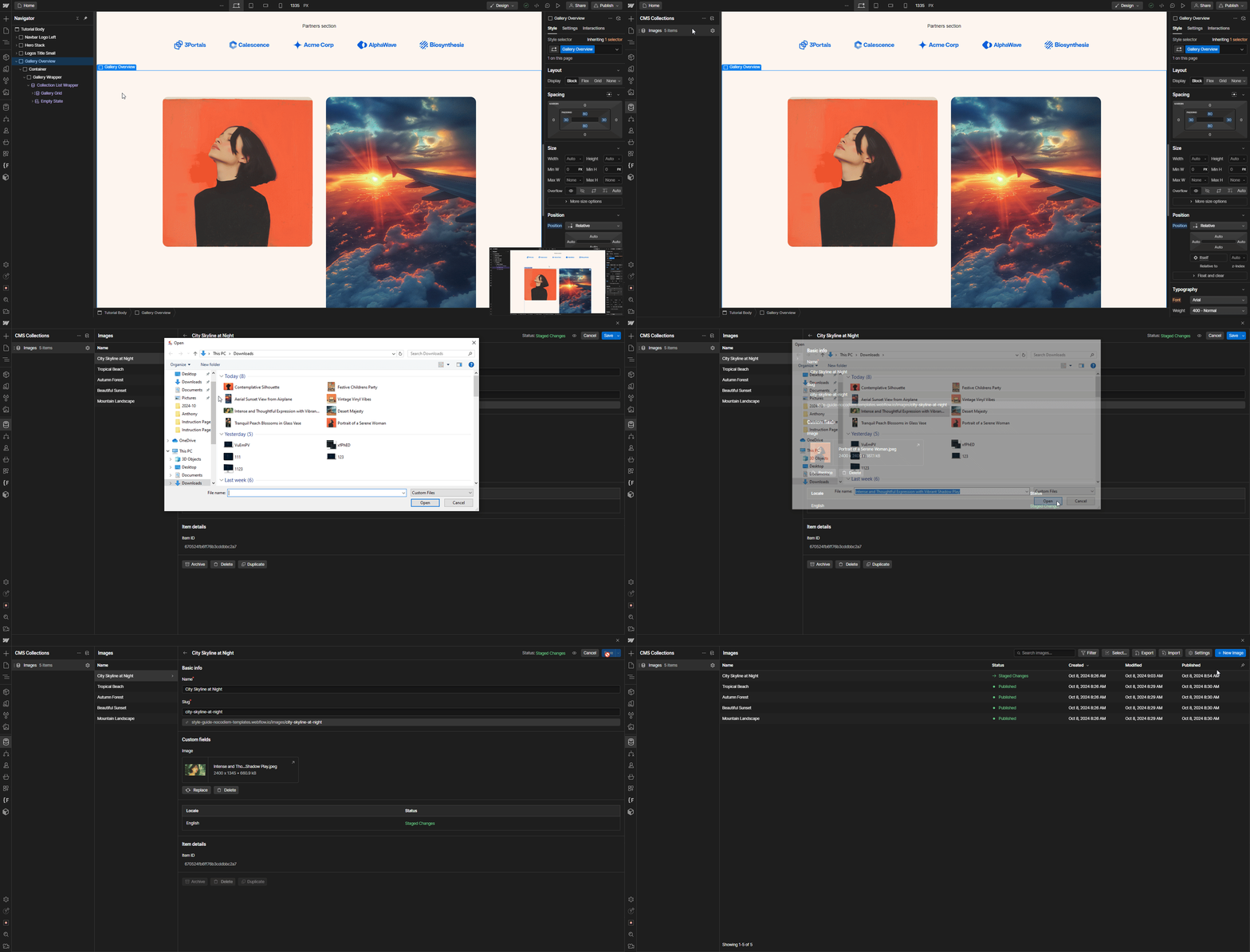
Dynamic content is generated from the CMS collections, such as blog posts or testimonials. You can identify CMS content by its purple color in the Navigator.
To update dynamic content:
- Go to the CMS Collections tab in the left sidebar and update the items.
- Select an Item you want to edit.
- Make your edits.
- Save the Item.
Interactions
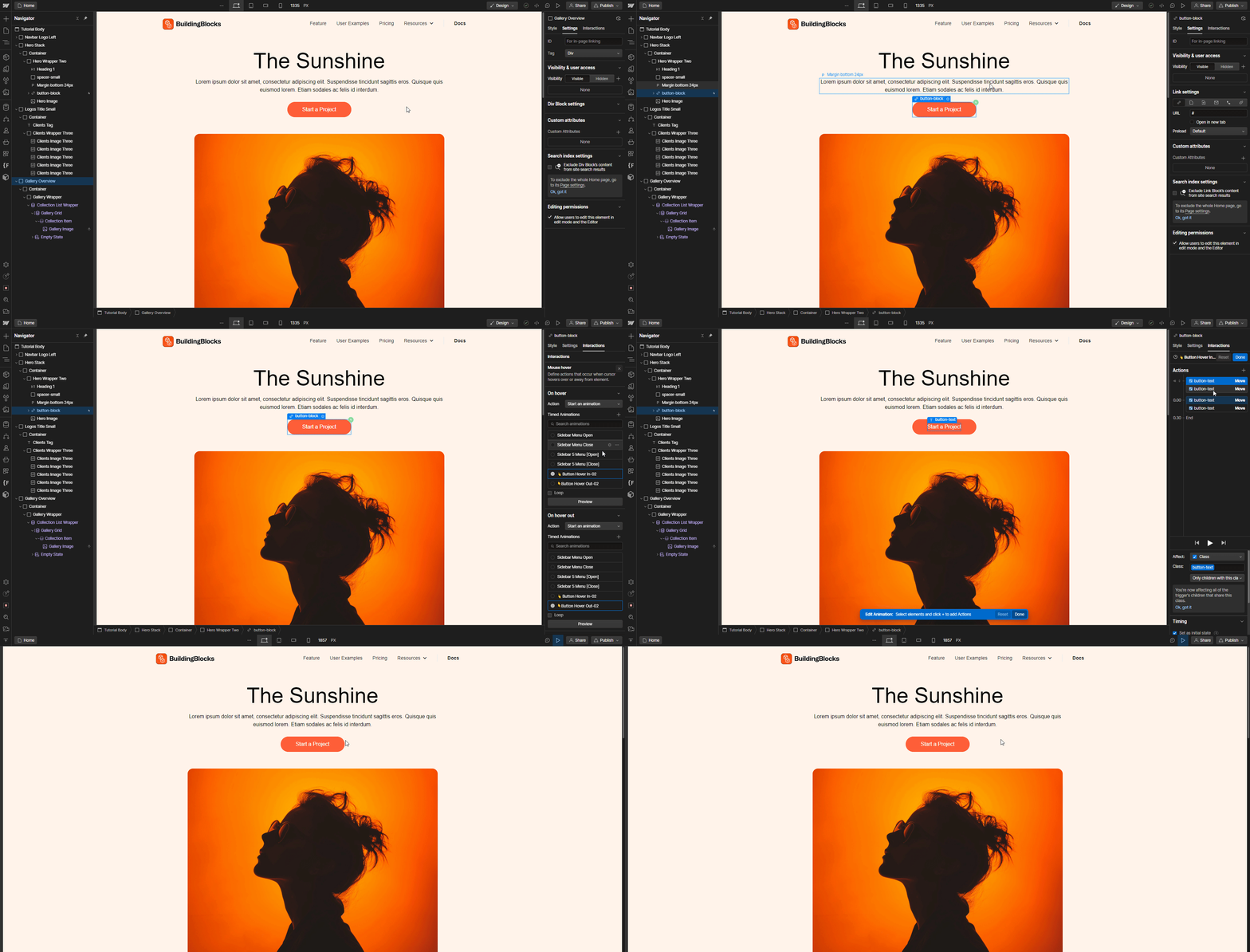
To edit interactions like animations:
- Look for the Interactions icon (lightning bolt) in the Navigator and click it.
- Adjust the interaction in the right sidebar's Interactions tab.
Mobile & Tablet View
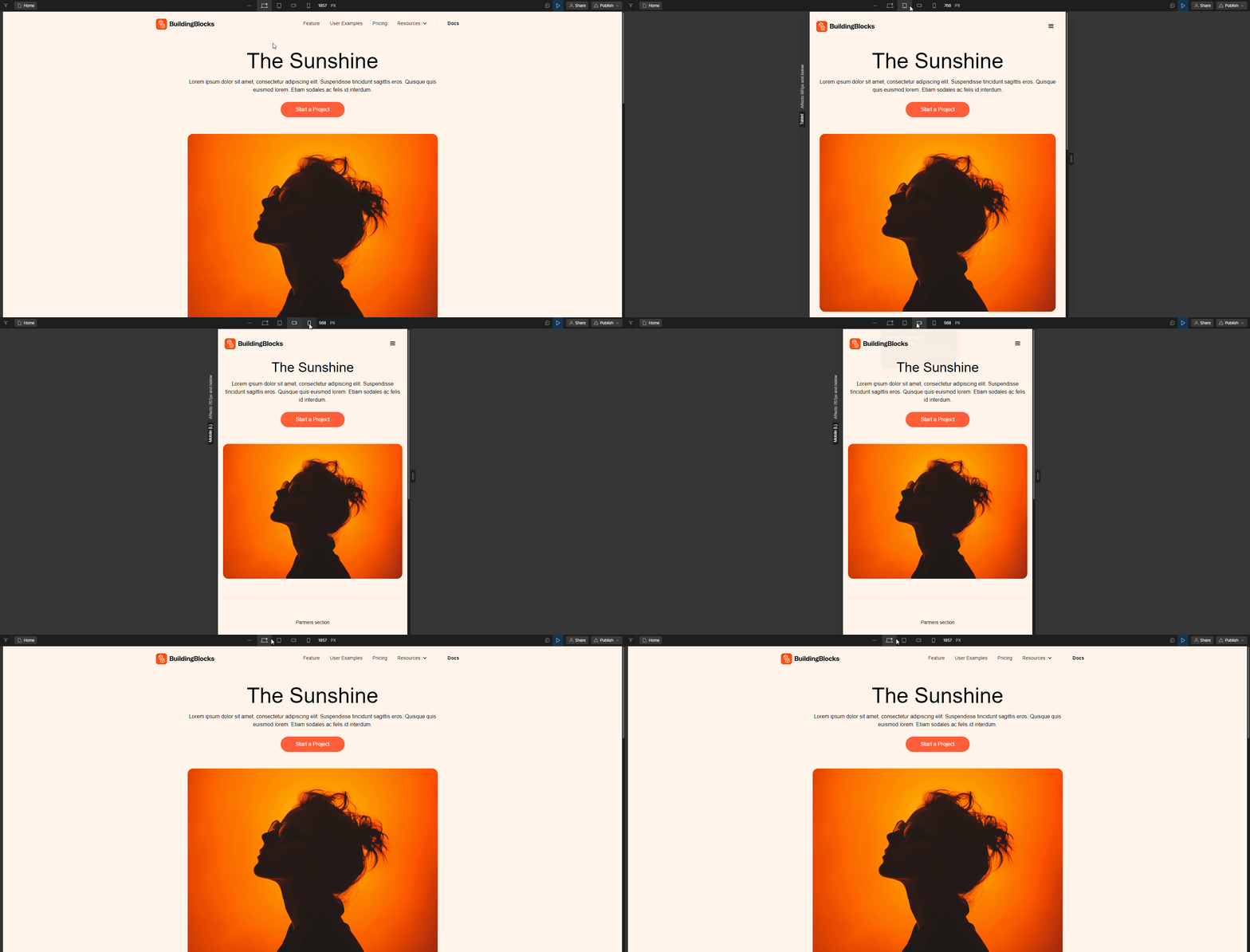
It’s important to check how your site looks on different devices by switching between the desktop, tablet, and mobile views in the top navigation.
SEO & Metadata
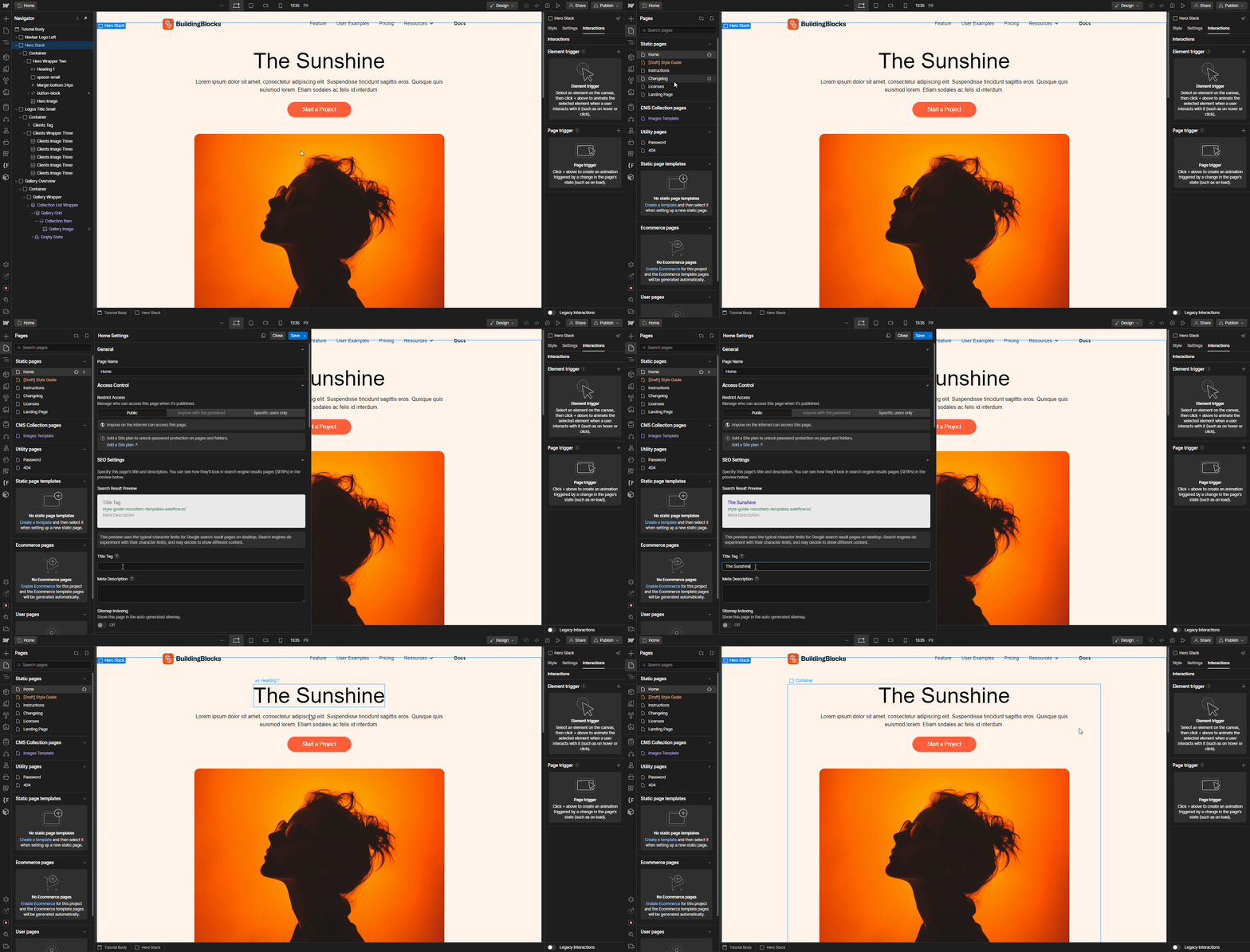
You can customize the title, description, and featured image of each page for better SEO.
To update SEO settings:
- Go to the Pages section in the left sidebar.
- Click the Settings icon for the page you want to edit, and fill in the relevant fields.
Backups
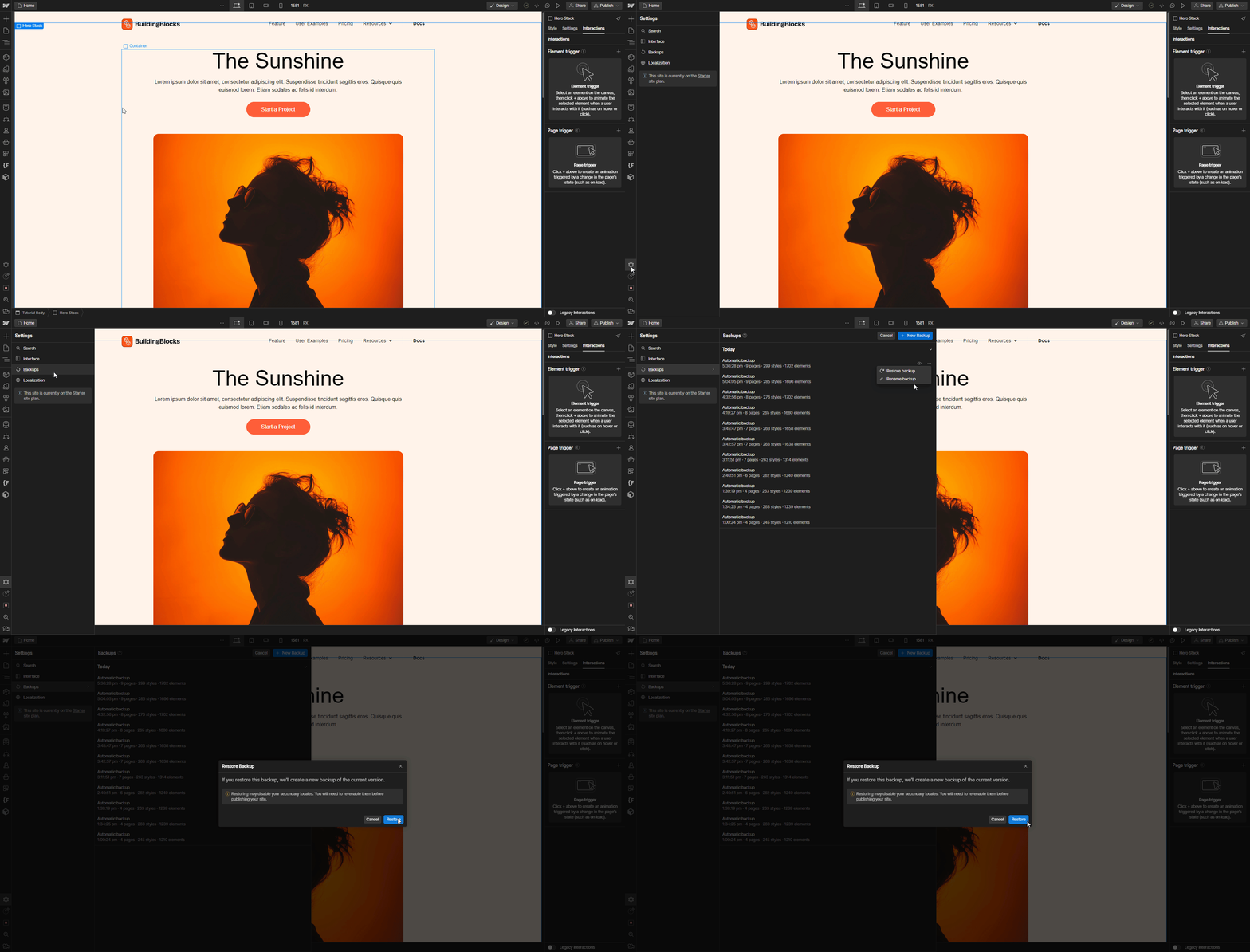
If you need to revert to a previous version of your site:
- Navigate to Settings in the left sidebar.
- Open the Backups tab to restore a previous version.
Publishing
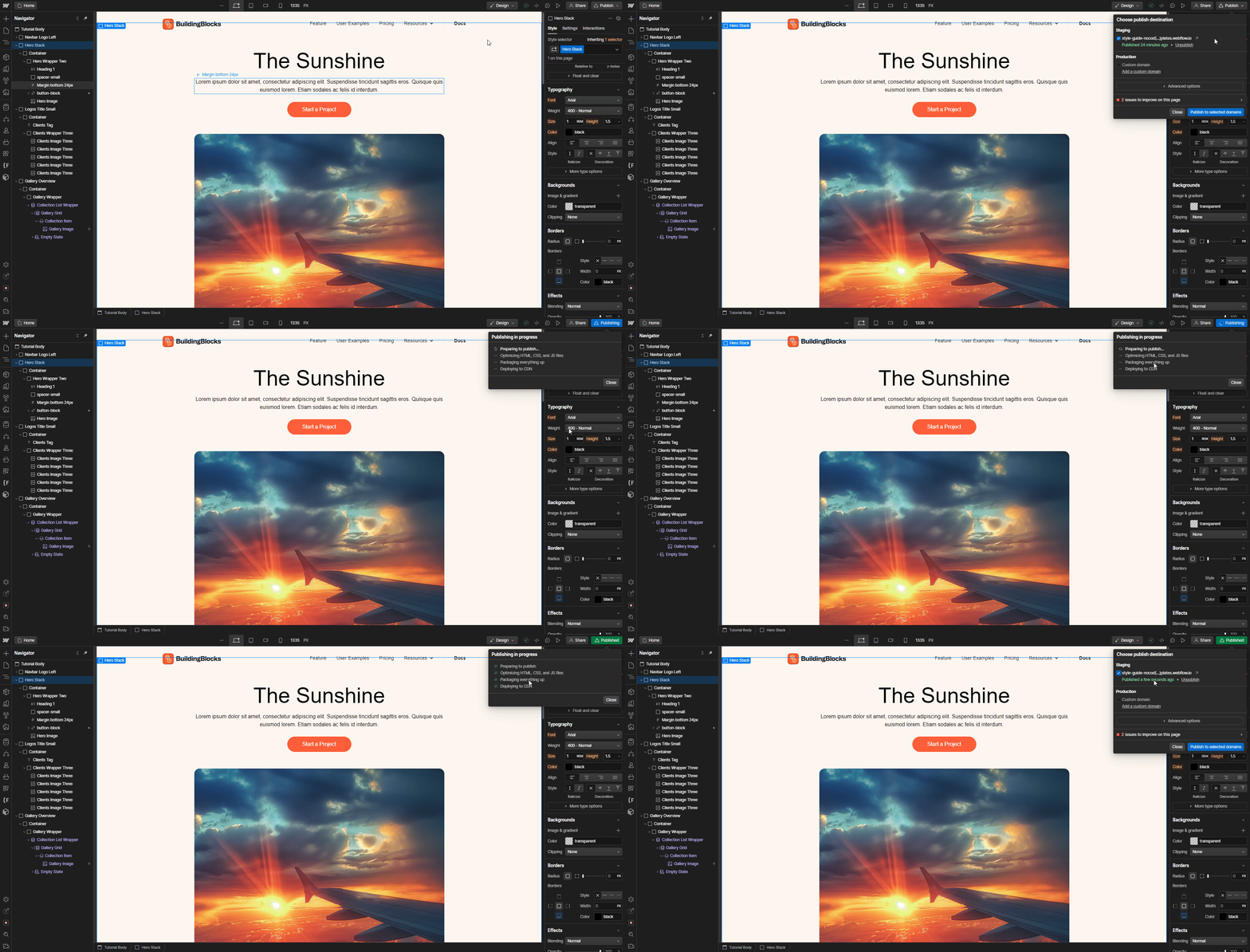
After edits don't forget to publish your site.
- Click the Publish Button:
- In the Designer or the project dashboard, locate the Publish button at the top-right corner (it's a blue button with a paper plane icon).
- Select the Domain(s):
- A window will pop up showing the available domains (your Webflow staging domain and any custom domains you've connected).
- Select the domains where you want to publish the site by checking the boxes next to the domain names.
- Click "Publish to Selected Domains":
- Once you've chosen the domains, click the Publish to Selected Domains button.
- Wait for Confirmation:
- Webflow will process your request, and you'll see a confirmation when the site is published.
- View Live Site: After the site is published, you can click the View Published Site link to check how it looks live.
Support
If you have any issues or questions, feel free to contact us at contact@nocodiem.com.
Frequently Asked Questions (FAQs)
1. How do I change the global colors?
You can update global colors from the Variables tab in the left sidebar. Simply scroll to the Colors section and change the color swatches to reflect your brand colors.
2. How do I add new pages or sections?
You can add new pages by going to the Pages section in the left sidebar. For sections, you can duplicate existing sections or create new ones by adding new elements and assigning classes following the Client-First naming system.
3. Why aren’t my images or icons changing color?
If an image or icon is in a PNG, JPG, or SVG format, it won’t be affected by Webflow’s global styles. You’ll need to edit these in an external design tool like Figma or Illustrator before re-uploading.
4. How do I customize my SEO settings?
Go to the Pages section, click the Settings icon for the page you want to customize, and edit the meta title, description, and featured image for better SEO.
5. How can I restore my site to a previous version?
If you make a mistake or delete something important, go to the Backups section in your project settings to restore a previous version of your site.